So AWS released AWS Emulator today, a local copy of the AWS APIs that the Werner Vogels guest post says is “built from more than 400 API models covering more than 200 AWS services”. You read the announcement, you want it in your integration tests, and you go looking for the image to docker run. And the Docker guide tells you this:
We don’t publish a prebuilt image. You build one from a short Dockerfile that installs the Linux package.
The emulator runs natively only on Linux (x86_64 or aarch64, glibc 2.17+), so on macOS and Windows, Docker is the documented path and every one of us is now expected to build and maintain our own image. The Dockerfile in the guide hardcodes the x86_64 RPM too, so on Apple silicon you edit the ADD line by hand.
So I built one.
The image
It lives at github.com/xSAVIKx/aws-emulator-docker. The release workflow builds linux/amd64 and linux/arm64 and publishes them to GHCR, Docker Hub and Quay, all public. latest follows the newest LTS release, a version tag such as 1.0.322.1 stays on that release, and a -debian suffix gives you the Debian-based variant:
docker pull ghcr.io/xsavikx/aws-emulator:latest
docker pull docker.io/xsavikx/aws-emulator:1.0.322.1
docker pull quay.io/xsavikx/aws-emulator:debian
This is an unofficial community build, not affiliated with or endorsed by AWS. The image installs the same LTS package the guide installs and changes nothing about the emulator.
Running it with docker run
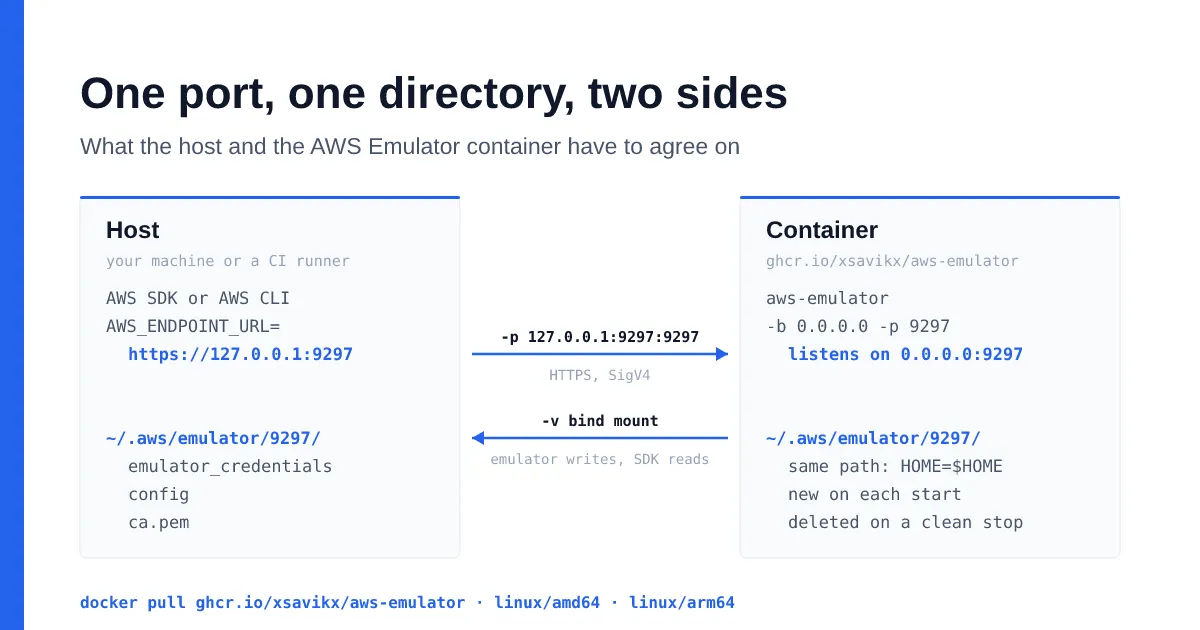
The emulator writes per-run files (credentials, config and the CA) to ~/.aws/emulator/<port>/, and your SDK needs those files on the host. So you mount that directory and keep HOME the same inside and outside the container:
mkdir -p ~/.aws/emulator
PORT=9297
# Rootful Docker on Linux: keep the --user line. On macOS and Windows: remove it.
# Rootless Docker: use --user 0:0 instead (see "Rootless Docker" below).
docker run -d --name aws-emulator --rm --memory=2g --memory-swap=2g -p 127.0.0.1:$PORT:$PORT \
  --user "$(id -u):$(id -g)" \
  -e HOME="$HOME" -e EMULATOR_TELEMETRY=off -e EMULATOR_HEALTHCHECK_PORT=$PORT \
  -v "$HOME/.aws/emulator:$HOME/.aws/emulator" \
  ghcr.io/xsavikx/aws-emulator:1.0.322.1 -p $PORT
I ran exactly this on my server (amd64, rootless Docker) with --user 0:0 in place of the --user line. A few seconds later the container is healthy and the four per-run files are on the host, mode 0600 and owned by my user (I replaced the user and group names in the output):
...
Digest: sha256:aae162c3df8a7f5343fb7c329caa5c6d982352ae2a893c719e7cbdc738cbbe10
Status: Downloaded newer image for ghcr.io/xsavikx/aws-emulator:1.0.322.1
0624daff2fb1a08616fc7120fa97c5cb45d597a3b9541eed42777b1cb076b7f7
$ docker ps --filter name=aws-emulator
CONTAINER ID   IMAGE                                    COMMAND                  CREATED         STATUS                   PORTS                      NAMES
0624daff2fb1   ghcr.io/xsavikx/aws-emulator:1.0.322.1   "aws-emulator -b 0.0…"   6 seconds ago   Up 5 seconds (healthy)   127.0.0.1:9297->9297/tcp   aws-emulator
$ ls -l ~/.aws/emulator/9297/
total 16
-rw------- 1 <user> <group> 570 Nov 11 21:51 ca.pem
-rw------- 1 <user> <group> 181 Nov 11 21:51 config
-rw------- 1 <user> <group> 116 Nov 11 21:51 emulator_credentials
-rw------- 1 <user> <group> 552 Nov 11 21:51 truststore.p12
Then point the AWS CLI at it:
export AWS_ENDPOINT_URL=https://127.0.0.1:9297
export AWS_SHARED_CREDENTIALS_FILE=~/.aws/emulator/9297/emulator_credentials
export AWS_CONFIG_FILE=~/.aws/emulator/9297/config
export AWS_CA_BUNDLE=~/.aws/emulator/9297/ca.pem
export AWS_EC2_METADATA_DISABLED=true
export AWS_DISABLE_HOST_PREFIX_INJECTION=true
export AWS_REGION=us-west-2 AWS_DEFAULT_REGION=us-west-2
unset AWS_ACCESS_KEY_ID AWS_SECRET_ACCESS_KEY AWS_SESSION_TOKEN AWS_PROFILE
With those exports (AWS CLI 2.39.6) STS and an S3 round trip work:
$ aws sts get-caller-identity
{
    "UserId": "AIDAH5I7GEMO7ADXNFAZU",
    "Account": "000000000000",
    "Arn": "arn:aws:iam::000000000000:user/emulator"
}
$ aws s3 mb s3://my-test-bucket
make_bucket: my-test-bucket
...
$ aws s3 ls s3://my-test-bucket/
2026-11-11 21:51:57         28 hello.txt
$ aws s3 cp s3://my-test-bucket/hello.txt -
hello from the AWS Emulator
After docker stop the 9297/ directory on the host is empty again.
How fast does it start? From docker run -d to the first HTTP 200 on /__admin/health, with the image already pulled, it took 0.72 s on average on my server (amd64), 0.42 s on a GitHub ubuntu-24.04 runner and 0.29 s on ubuntu-24.04-arm (five runs each).
Note: Docker’s own healthy status shows up later than that, because it only changes when the image’s HEALTHCHECK runs, every 10 s.
The gotchas
Most of these come from the Docker guide, the CLI reference and the SDK guide. Where I reproduced one, I say what I measured.
Bind address. The emulator binds 127.0.0.1 by default, which Docker can’t forward, so the image starts aws-emulator -b 0.0.0.0 and the emulator logs a WARN about it. That’s fine inside the container. On the host side always publish on 127.0.0.1, because a plain -p 9297:9297 opens the emulator to your whole network.
Port. The emulator names the per-run directory after the port and writes the port into the generated config. So the host side of -p, the container side of -p and the emulator’s own -p must match, and -p 0 doesn’t work in a container. The guide says two containers on the same inner port “replace and delete each other’s files”, and I checked it: two containers on inner port 9297 with the same mount (host ports 19410 and 19411). The second one replaced the key file, so with that key the first answered InvalidClientTokenId and the second 000000000000. Then I stopped the second one and the 9297/ directory went empty for both. If you change the port, also set EMULATOR_HEALTHCHECK_PORT so the image’s HEALTHCHECK knocks on the right one.
TLS. The emulator serves HTTPS with a self-signed certificate it generates on each start and writes as ca.pem and truststore.p12, so whatever trusted yesterday’s ca.pem won’t trust today’s. The ca_bundle in the generated config is the path inside the container. Mirroring $HOME like above makes the two paths match, but if you mount the directory anywhere else (the README’s Windows command mounts it at /home/emulator/.aws/emulator) they don’t, and you set AWS_CA_BUNDLE to the host path yourself. Node needs NODE_EXTRA_CA_CERTS, Rust and .NET need SSL_CERT_FILE, Java needs the truststore.p12. Except for Node, these replace the default trust store, so that process can’t reach real AWS anymore.
Auth. SigV4 is on by default and the keys are new on each run, in emulator_credentials (mode 0600) next to config. That’s why the mount matters. The README unsets AWS_ACCESS_KEY_ID, AWS_SECRET_ACCESS_KEY, AWS_SESSION_TOKEN and AWS_PROFILE so the SDK uses the emulator’s keys and not yours. Use 127.0.0.1, not localhost, in AWS_ENDPOINT_URL, otherwise the JS, Java and Go SDKs switch to virtual-host S3 addressing. I tried it with the JS SDK (@aws-sdk/client-s3 3.1167.0 on Node v26.13.0): https://127.0.0.1 listed the bucket, and https://localhost failed with Error: getaddrinfo ENOTFOUND js-localhost.localhost.
Region. The docs say the emulator has one account (000000000000) and is verified in us-west-2, with global services in us-east-1, and the generated config sets region = us-east-1. AWS_REGION wins over that file, and other Regions work too. I tried eu-central-1, eu-west-1, ap-southeast-2, sa-east-1 and me-central-1: STS, S3 with a LocationConstraint, SQS and DynamoDB all worked, and DynamoDB tables and SQS queues were separate per Region, like on AWS. It doesn’t validate the name either, so AWS_REGION=xx-fake-1 happily gives you arn:aws:dynamodb:xx-fake-1:000000000000:table/tbl. So a typo in the Region won’t fail your tests the way it would against AWS.
Persistence. There’s none. All emulated resources live in memory. The mounted directory holds the per-run credentials, config and certificates (plus config.toml and the telemetry ID one level up), and the emulator deletes the per-run files on a clean stop. There’s no reset route and no snapshot, so restarting the container is your reset. Over the 2 GiB limit the container is killed with exit code 137 and takes the state with it.
Rootless Docker. On rootful Docker, --user "$(id -u):$(id -g)" makes the files belong to you, and the guide recommends it on Linux. On my rootless Docker the same flag with the bind mount failed with:
emulator serve failed: server I/O error: Permission denied (os error 13)Container UIDs map to other host UIDs there, and leaving --user out fails with the same error. What works is --user 0:0: on rootless Docker container root maps to your own user, so the emulator can write to the mount and the files on the host belong to you (that’s the ls -l above). Either way, create ~/.aws/emulator before the first run, or Docker creates it as root and your SDK can’t read the files.
Telemetry. Upstream sends anonymous usage telemetry by default and the image doesn’t change that. Pass -e EMULATOR_TELEMETRY=off to docker run. Exporting it in your own shell doesn’t reach the container.
Docker Compose
The repository ships a compose.yaml:
services:
  aws-emulator:
    image: ghcr.io/xsavikx/aws-emulator:latest
    command: ["-p", "9297"]
    user: "${UID_GID:-1000:1000}"
    environment:
      HOME: ${HOME}
      EMULATOR_TELEMETRY: ${EMULATOR_TELEMETRY:-on}
    ports:
      - "127.0.0.1:9297:9297"
    volumes:
      - ${HOME}/.aws/emulator:${HOME}/.aws/emulator
    mem_limit: 2g
    memswap_limit: 2g
    restart: "no"
mkdir -p ~/.aws/emulator
# Rootless Docker: UID_GID=0:0
UID_GID="$(id -u):$(id -g)" EMULATOR_TELEMETRY=off docker compose upHere Compose passes EMULATOR_TELEMETRY from your shell into the container, unlike plain docker run. On rootless Docker I ran it with UID_GID=0:0 and up -d:
$ UID_GID=0:0 EMULATOR_TELEMETRY=off docker compose up -d
...
 Container compose-aws-emulator-1 Started
$ docker compose ps
NAME                     IMAGE                                 COMMAND                  SERVICE        CREATED         STATUS                   PORTS
compose-aws-emulator-1   ghcr.io/xsavikx/aws-emulator:latest   "aws-emulator -b 0.0…"   aws-emulator   6 seconds ago   Up 5 seconds (healthy)   127.0.0.1:9297->9297/tcp
$ docker compose logs
...
aws-emulator-1  | This emulator collects usage and error telemetry: disabled (via EMULATOR_TELEMETRY=off) — to turn it back on, remove every opt-out setting and restart
This setup is for tests and tools on the host that call https://127.0.0.1:9297. A second container on the same Compose network that calls the emulator by its service name doesn’t work. The emulator’s certificate only names localhost, 127.0.0.1 and ::1, so the AWS CLI in the amazon/aws-cli image fails with:
SSL validation failed for https://aws-emulator:19402/ hostname 'aws-emulator' doesn't match either of 'localhost', '127.0.0.1', '0:0:0:0:0:0:0:1'Path-style S3 fails with the same TLS error, and virtual-hosted style can’t even resolve https://net-bucket4.aws-emulator:19402/. What worked is running the client container in the emulator’s network namespace (docker run --network container:<emulator>) with the endpoint https://127.0.0.1:<port>: STS, s3 mb and s3 ls passed. In Compose that would be network_mode: service:aws-emulator on the client service, which I haven’t tested.
GitHub Actions
This is the part I built the image for. The shortest way is the Run AWS Emulator action I published next to the image:
jobs:
  integration:
    runs-on: ubuntu-latest # or ubuntu-24.04-arm for arm64
    steps:
      - uses: actions/checkout@v7
      - uses: xSAVIKx/run-aws-emulator@v1
        with:
          image: ghcr.io/xsavikx/aws-emulator:1.0.322.1-20261111.12
      - run: make integration-test
It starts the image, waits until it’s healthy and exports AWS_ENDPOINT_URL, the credentials and config files and the CA for the AWS CLI and every SDK. It sets NODE_EXTRA_CA_CERTS for Node, and for Rust, .NET and Java it builds combined trust files (the system CAs plus the emulator’s CA) behind SSL_CERT_FILE and JAVA_TOOL_OPTIONS, so Maven, NuGet or crates.io downloads in the same job keep working. Its inputs cover the image, the port, the Region (default us-east-1), memory and telemetry (off by default).
If you’d rather see the moving parts, here’s the same thing as one plain step that starts the emulator, waits for it and hands the settings to the next steps through $GITHUB_ENV:
jobs:
  integration:
    runs-on: ubuntu-latest # or ubuntu-24.04-arm for arm64, same image
    env:
      EMU_PORT: "9297"
      EMU_IMAGE: ghcr.io/xsavikx/aws-emulator:1.0.322.1@sha256:743172fa4509c73580af3fdd1a40fbd7eb7f91b98e19bc84e5c9595e9ce04487
    steps:
      - name: Start AWS Emulator
        run: |
          D="$HOME/.aws/emulator/$EMU_PORT"
          mkdir -p "$HOME/.aws/emulator"
          docker run -d --name aws-emulator -p "127.0.0.1:$EMU_PORT:$EMU_PORT" \
            --user "$(id -u):$(id -g)" -e HOME="$HOME" -e EMULATOR_TELEMETRY=off \
            -e EMULATOR_HEALTHCHECK_PORT="$EMU_PORT" \
            -v "$HOME/.aws/emulator:$HOME/.aws/emulator" "$EMU_IMAGE" -p "$EMU_PORT"
          timeout 60 sh -c "until curl -sf --cacert $D/ca.pem https://127.0.0.1:$EMU_PORT/__admin/health; do sleep 1; done"
          cat >> "$GITHUB_ENV" <<EOF
          AWS_ENDPOINT_URL=https://127.0.0.1:$EMU_PORT
          AWS_SHARED_CREDENTIALS_FILE=$D/emulator_credentials
          AWS_CONFIG_FILE=$D/config
          AWS_CA_BUNDLE=$D/ca.pem
          AWS_DISABLE_HOST_PREFIX_INJECTION=true
          AWS_REGION=us-west-2
          EOF

      - run: make integration-test
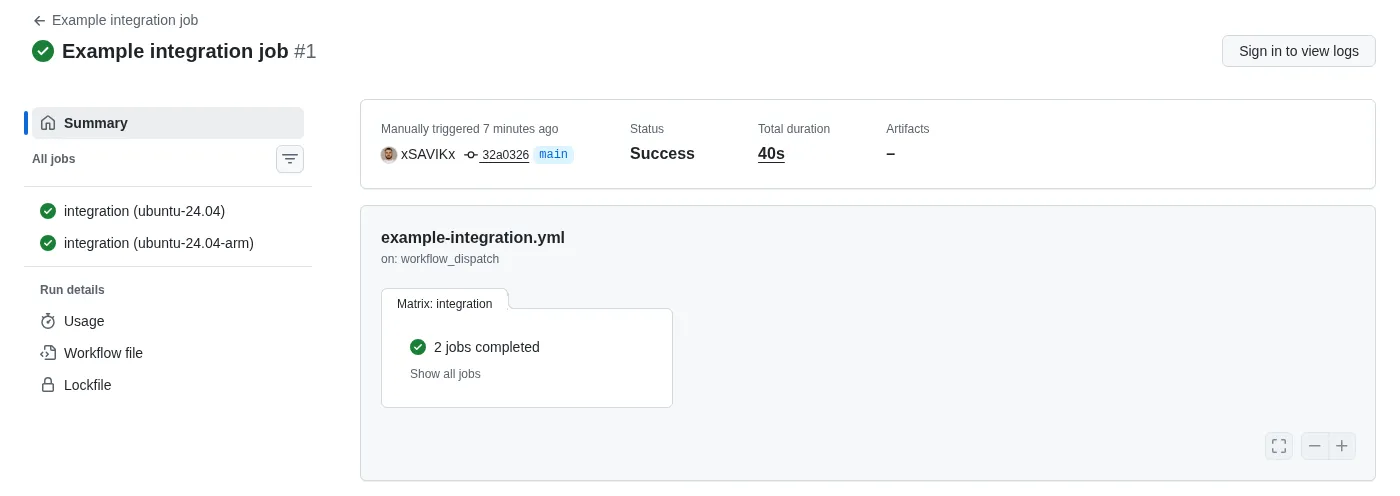
A longer version of this job, with separate steps, a log dump on failure and STS plus an S3 round trip in place of make, is example-integration.yml in the image repository, and its run passed on ubuntu-24.04 and ubuntu-24.04-arm. I ran the shorter step above on my server too (with --user 0:0 for rootless Docker), and STS and S3 worked against it.
A few notes on it:
- Pin a build tag or a digest. The release workflow re-tags
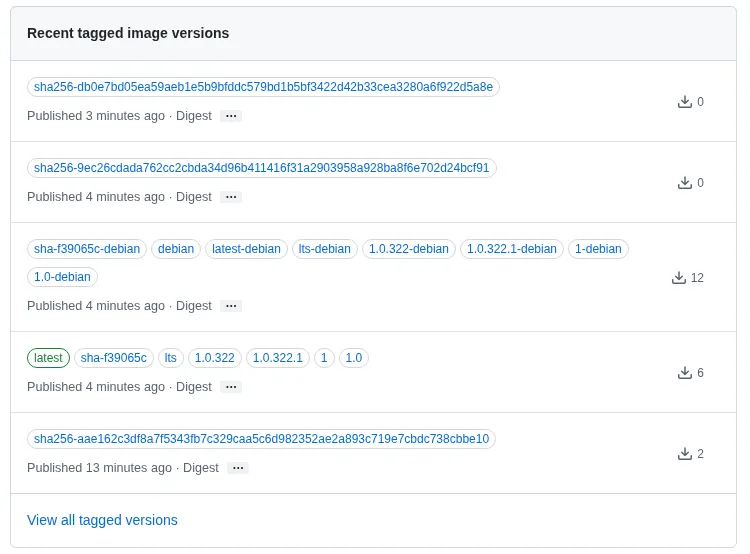
1.0.322.1and1.0.322on every push tomainthat touches the image, so a version tag can move even when the upstream version doesn’t. And it already did:1.0.322.1pointed at five different builds on launch day while the upstream version stayed1.0.322.1. That’s why every build now also gets its own tag that never moves, like1.0.322.1-20261111.12(and1.0.322.1-20261111.12-debian).latestandltsalso move every time AWS ships a new version. - Know what the pin costs you. The versioning page says “We publish security fixes only in the latest release”, and AWS’s own agent skill says “Always use the
latestpackage; do not pin a version.” A digest pin keeps your tests stable, and bumping it is on you. - Keep
--cacertin the wait loop. It only passes onceca.pemexists and the TLS handshake against it works, which is the same thing your SDK will need. - Don’t set
AWS_ACCESS_KEY_IDorAWS_PROFILEanywhere in the job env, or the SDK uses them instead of the emulator’s credentials file. - The
--userline assumes rootful Docker, which is what the GitHub-hosted runners have, and the CI run used it as written.
The GHCR package page a few minutes after those runs shows the second move, with aae162c3… left without tags:
When a test fails, don’t expect much from docker logs. In my tests most requests wrote no log line at all, and the error text comes back in the API response instead. An operation that isn’t implemented returns 501 NotImplemented, as the fidelity page says, and two other results surprised me:
$ aws sqs create-queue --queue-name demo-queue
{
    "QueueUrl": "https://sqs.us-west-2.amazonaws.com/000000000000/demo-queue"
}
$ docker logs aws-emulator   # lines written for the request above
...
$ aws s3control list-access-points --account-id 000000000000

aws: [ERROR]: Could not connect to the endpoint URL: "https://000000000000.127.0.0.1:9297/v20180820/accesspoint"
$ docker logs aws-emulator   # lines written for the request above
$ aws gamelift list-fleets

aws: [ERROR]: An error occurred (NotImplemented) when calling the ListFleets operation: operation ListFleets is scaffolded but not implemented in this emulator
$ docker logs aws-emulator   # lines written for the request above
S3 Control puts the account ID in front of the host, so the request never reaches the emulator, and the SQS queue URL points at the real sqs.us-west-2.amazonaws.com host name. That last one bites the JS SDK v3: it sends SQS calls to the host in the queue URL, so they went to real AWS and failed with InvalidClientTokenId. new SQSClient({ useQueueUrlAsEndpoint: false }) keeps them on the emulator. Python, Go, Java, .NET and Rust used AWS_ENDPOINT_URL without any extra setting. The fidelity page also says the emulator matches AWS most closely for control plane APIs, and code runs only in Lambda, for Python and Node.js zip packages (issue #3). So check that the services and operations your tests call are covered before you delete the moto or LocalStack setup you have today.
How the image is built and kept current
The guide’s ADD then RUN rm pattern leaves the 166 MB RPM in a layer anyway. So a fetch stage downloads it and the runtime stage installs it through RUN --mount=type=bind, and the RPM never lands in the image. My first try mounted it under /tmp, which failed with rm: cannot remove '/tmp/aws-emulator.rpm': Device or resource busy, so it lives under /mnt/pkg now. TARGETARCH picks the x86_64 or aarch64 package, and each architecture builds on a native GitHub runner without QEMU.
Every hour a scheduled workflow reads versions.json from the versioning page and builds only if that version isn’t on GHCR yet. Its first job records the SHA-256 of each package, the fetch stage checks it, and then rpmkeys --checksig checks the signature against the AWS “SSM Publishing” key (fingerprint 98BC F336 A3BE 53B7 34E9 67C5 2E5B F49B D940 F624) committed in the repository, so a changed key fails the build. The Debian variant installs the .deb on debian:trixie-slim and checks its detached .sig with gpg. Pushes that only change docs, the site or the example workflows don’t republish, thanks to paths-ignore.
Base images are pinned by digest and every uses: by SHA. Each published image gets an SBOM, SLSA provenance (mode=max), a keyless cosign signature and a GitHub build attestation. Trivy scans latest on every push to main and Dependabot watches the repository.
For the first release the registry shows 305 MiB compressed for amd64 and 291 MiB for arm64. Uncompressed on the GitHub runners the 743172fa… image is 1.07 GB on amd64 (1074631603 bytes) and 1.01 GB on arm64 (1013029040 bytes). The 1.4 GB I saw on my server comes from a different image store.
Both checks below pass. Use cosign v3: v2.5.3 says “no signatures found” for the same digest, because the workflow signs in the newer bundle format.
cosign verify ghcr.io/xsavikx/aws-emulator:latest \
  --certificate-identity-regexp '^https://github.com/xSAVIKx/aws-emulator-docker/' \
  --certificate-oidc-issuer https://token.actions.githubusercontent.com

gh attestation verify oci://ghcr.io/xsavikx/aws-emulator:latest --owner xSAVIKx
For working tests in your language, the repository has examples for Python (pytest and Boto3), TypeScript (Vitest and JS SDK v3), Java (JUnit 5), Go, C# (xUnit) and Rust. Each one covers STS, S3, DynamoDB, SQS, SNS to SQS and Secrets Manager, and all of them pass in CI on amd64 and arm64.
If something in your setup breaks, a gotcha I missed or a platform that misbehaves, open an issue and I’ll look at it. The upstream repository doesn’t take PRs, so emulator bugs go to its issue tracker, not mine. And the next post covers the build pipeline in detail, with the numbers from the first real CI runs.